How to Place a Trade

After gaining a better understanding of the complexities of the stock market and familiarising yourself with the Webull App through our paper trading feature, you are now ready to execute real trades in the stock market.
Webull offers a diverse range of trading products, such as American Depositary Receipts (ADRs), Options, Stocks, and Exchange Traded Funds (ETFs), with many more to come! Fortunately, Webull had designed the Webull App that allows our users to execute and key in trades in several ways. We will show you how to perform a stock trade in various ways on the Webull App in this article.
Stock Detail Page
Before you can execute trades and invest in your favourite companies, you will need to know how to reach a particular stock’s detail page. In this case, the Webull App allows you to access the detail page in a few ways.
1. Markets
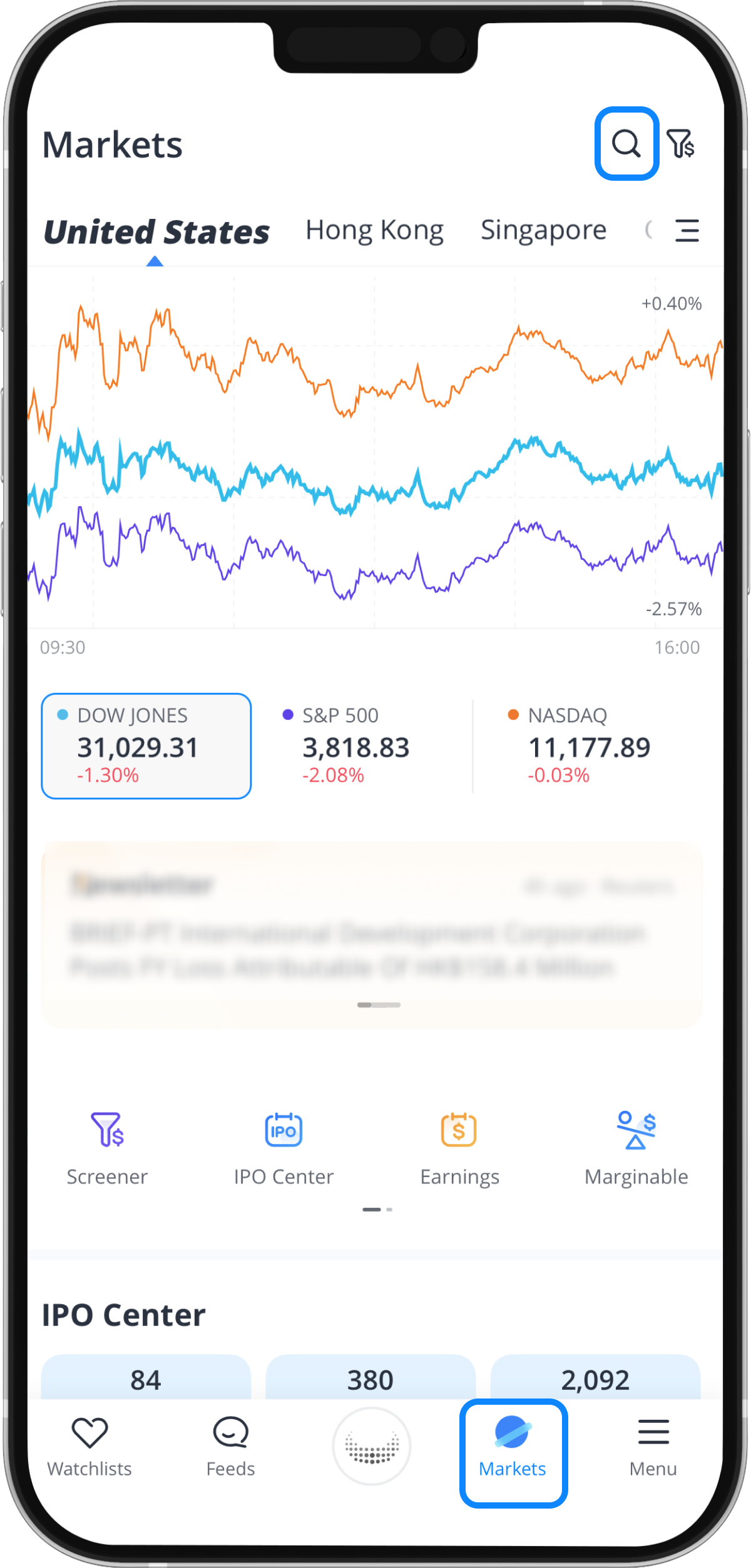
Step 1: Tap “Markets” at the bottom of the screen
Step 2: Search for Markets and Stocks
You can scroll down to view the many investable stocks available on this page. You can also tap on the search icon at the top right corner to search for the companies you want to invest in.
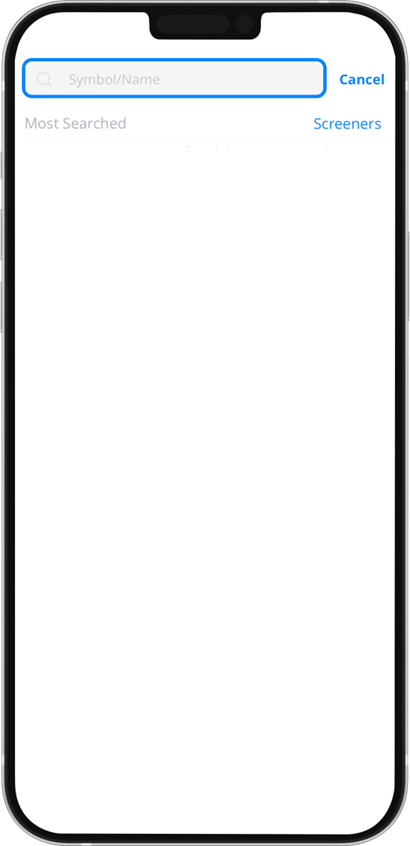
Step 3: Select a stock and go to a Stock’s Details Page
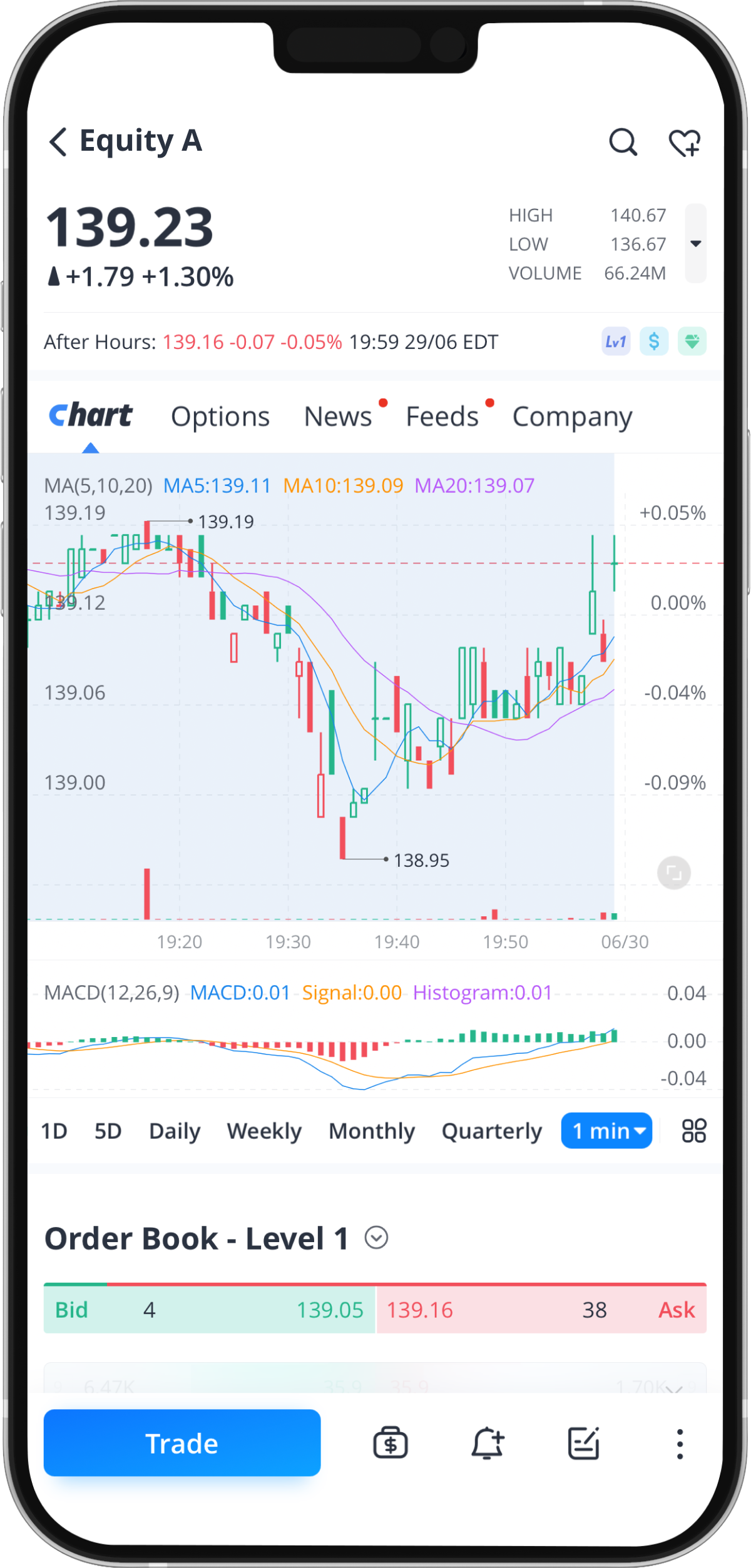
2. Watchlists
Step 1: Tap “Watchlists” at the bottom of the screen
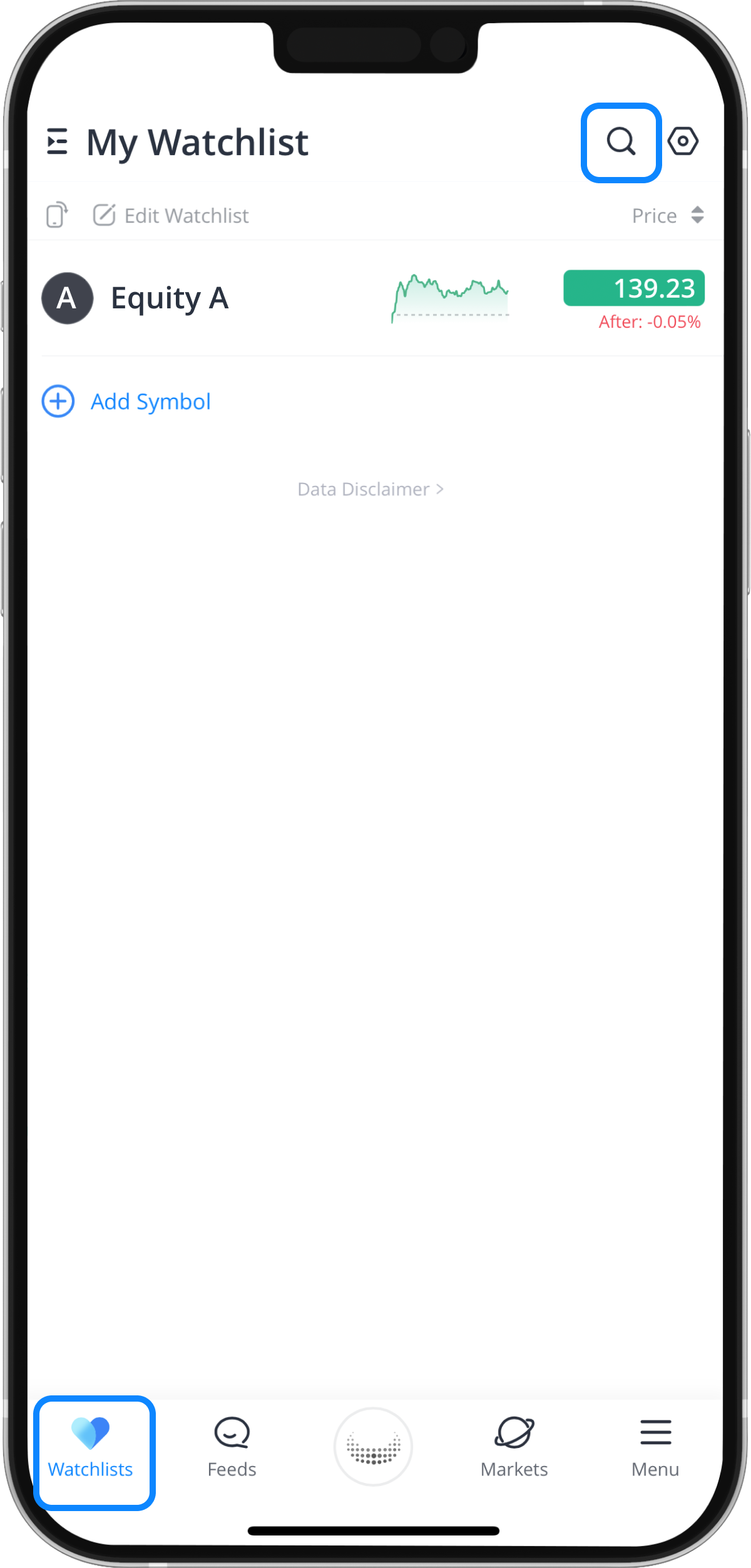
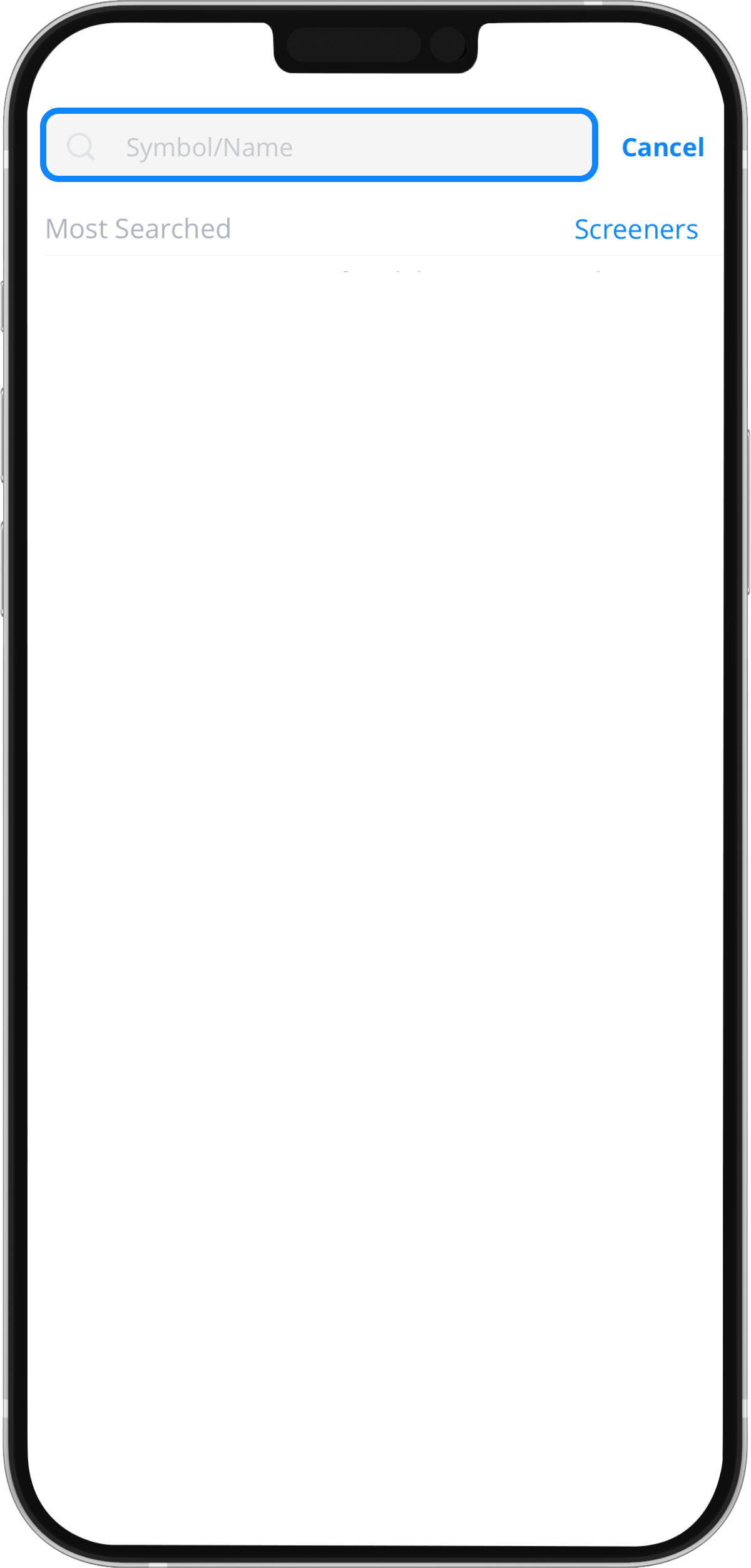
Select a stock on your watchlist to access a stock details page.
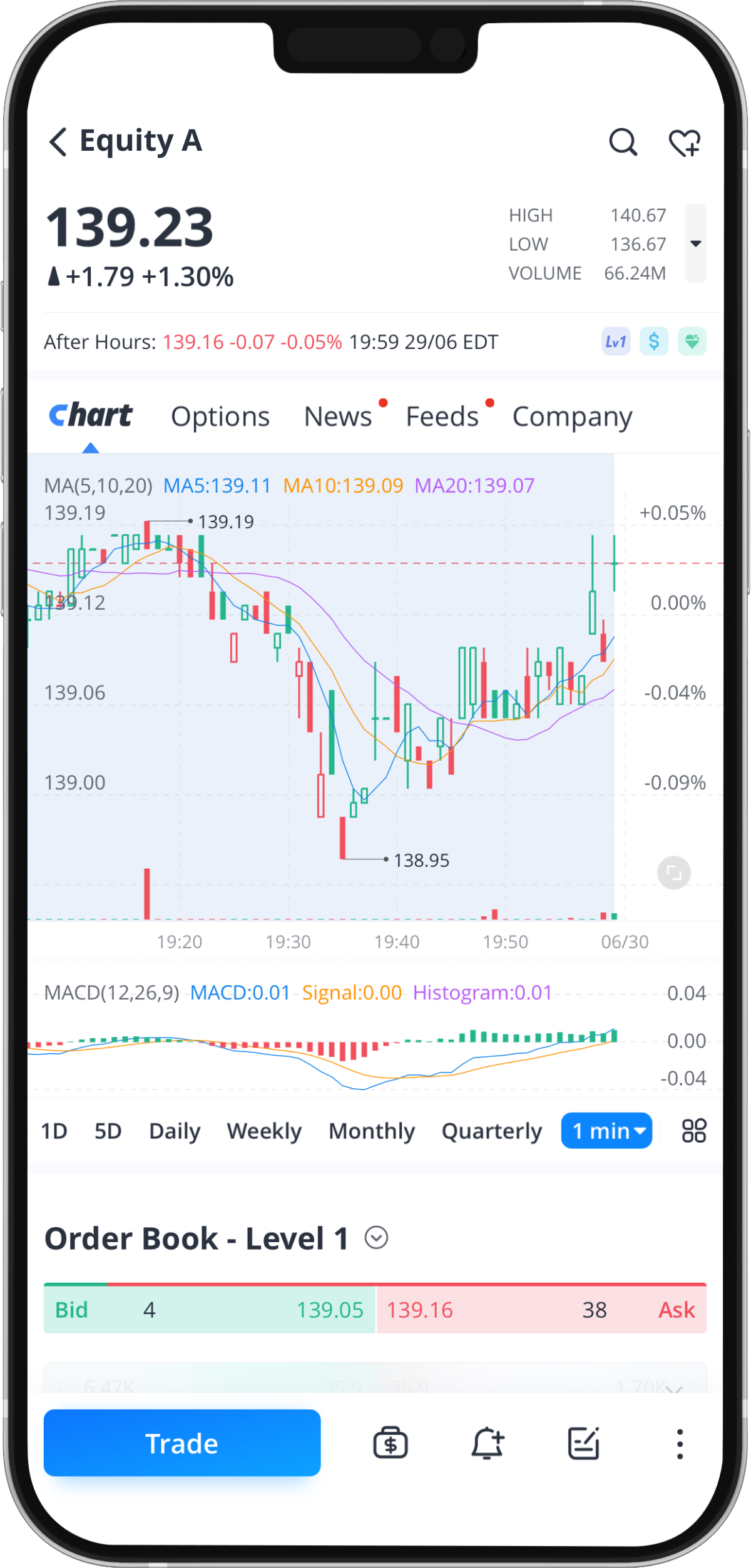
Trade Execution
Now that you understand and are aware of the many different ways to access a stock’s detail page, it is time for you to learn how to execute trades in various ways when you are at a stock’s detail page.
1. Standard Method
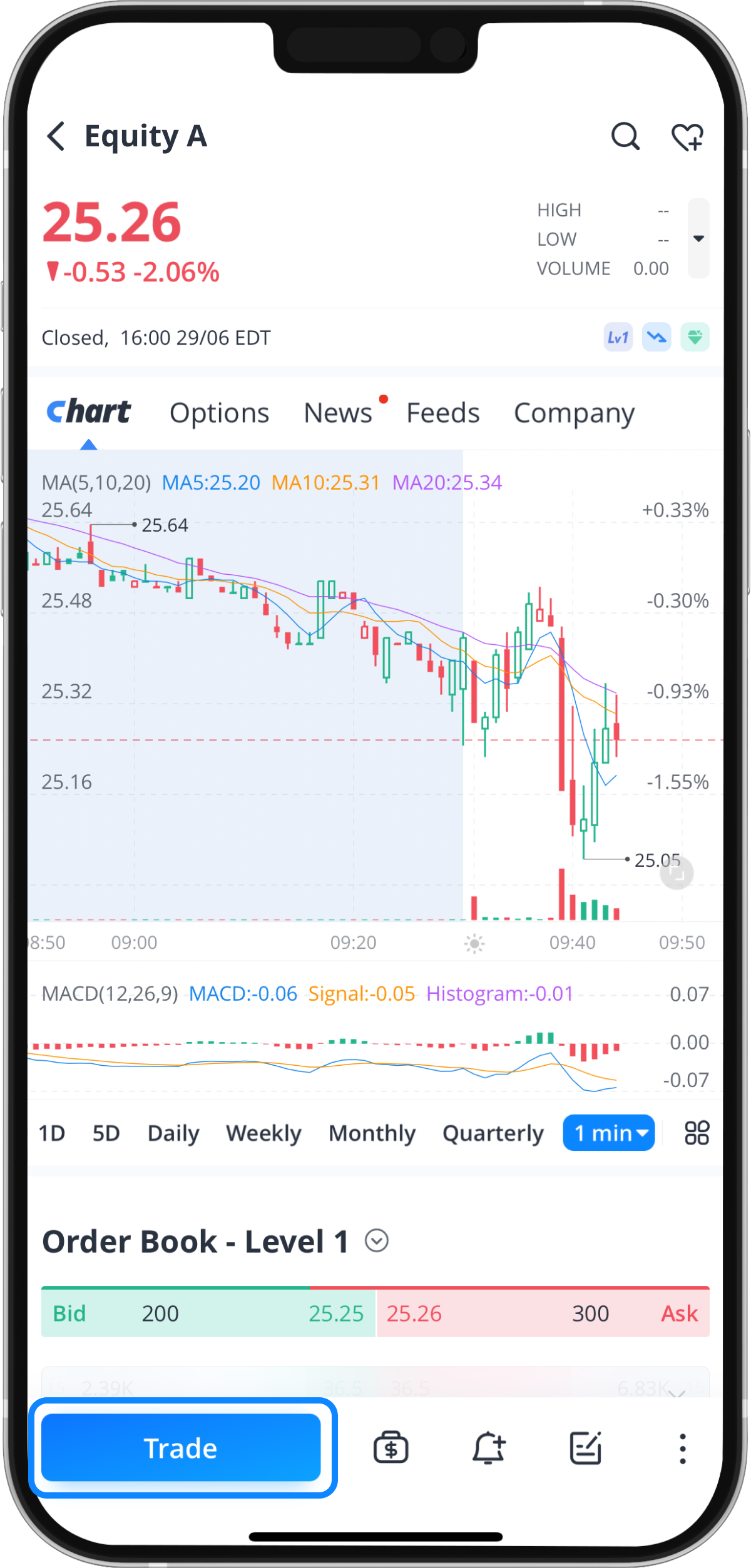
Step 1: Tap “Trade”
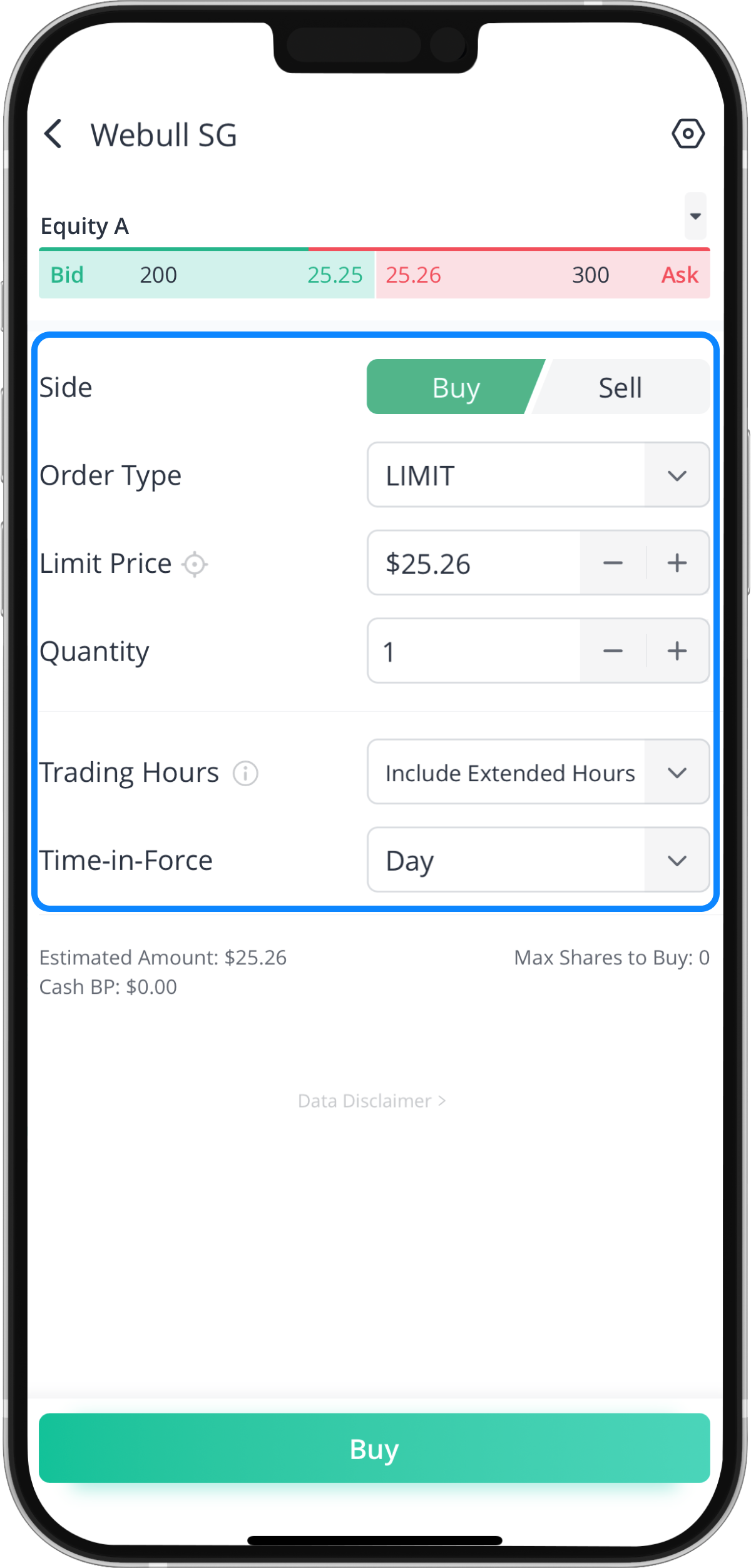
Step 2: Edit and Confirm your Stock Order
Tap “Buy” or “Sell” if you want to purchase or sell the stock.
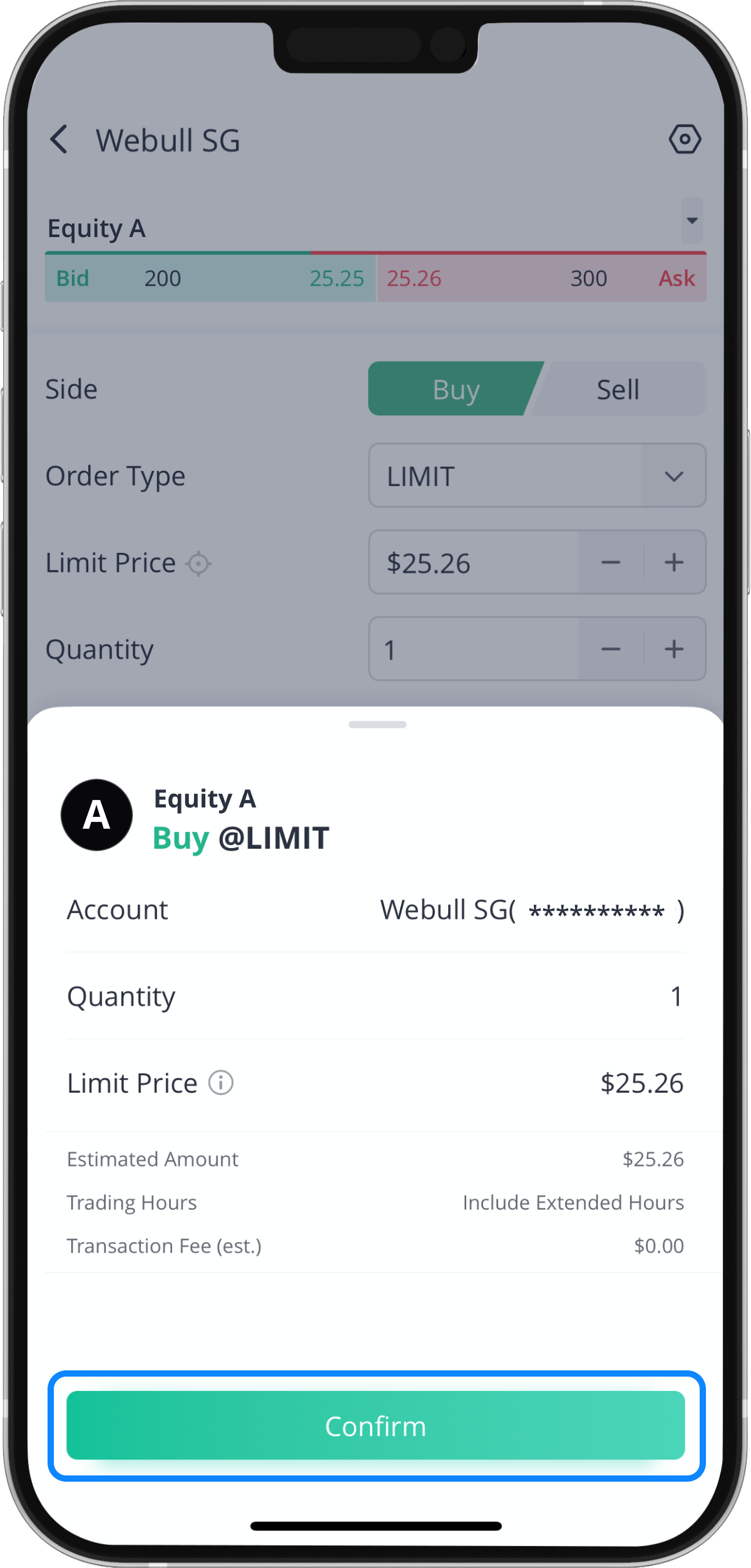
Tap “Confirm” to confirm and submit your order.
2. Chart Method
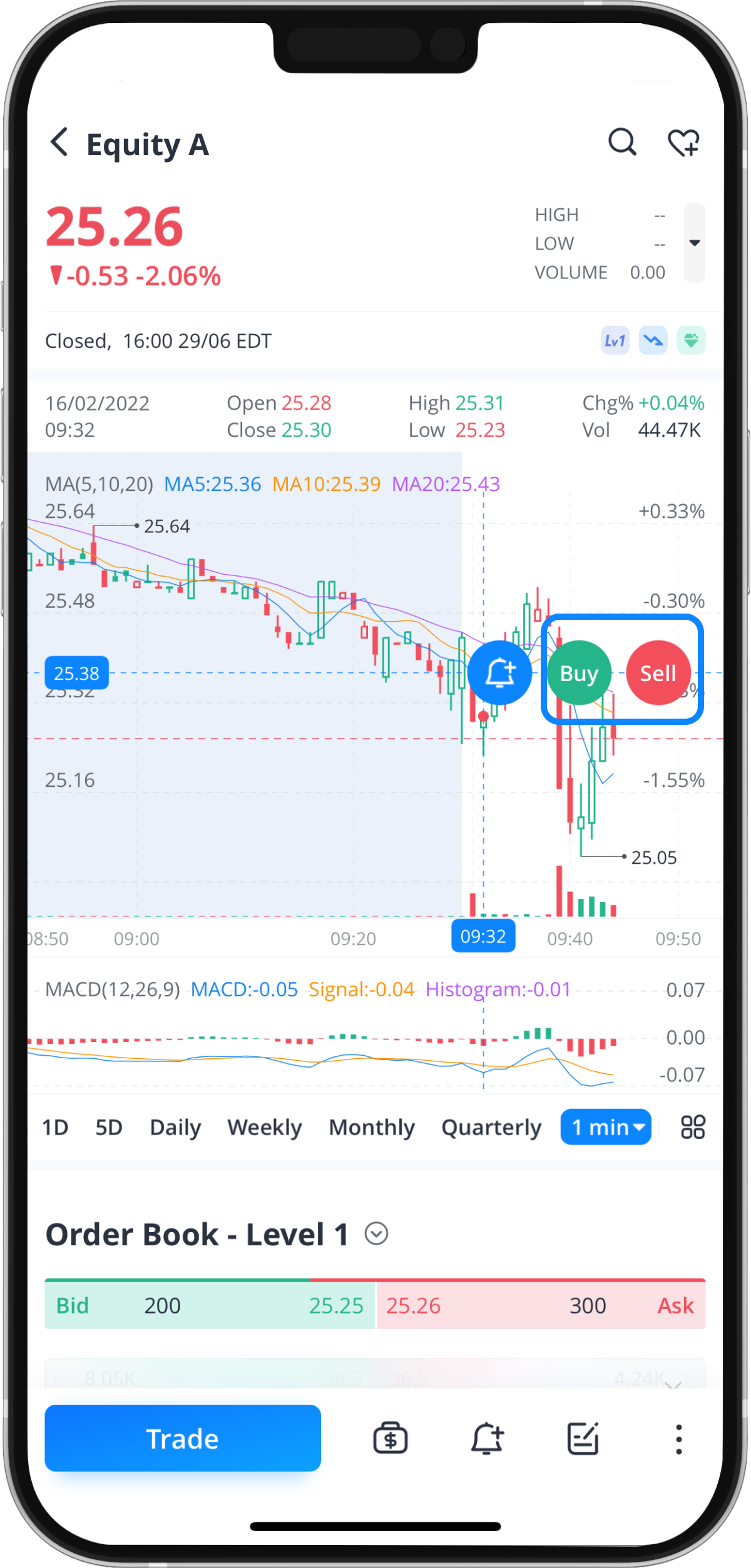
Step 1: Tap the Stock Chart
When you tap and hold your finger on any chart point, you will prompt two options, “Buy” and “Sell”, to choose from.
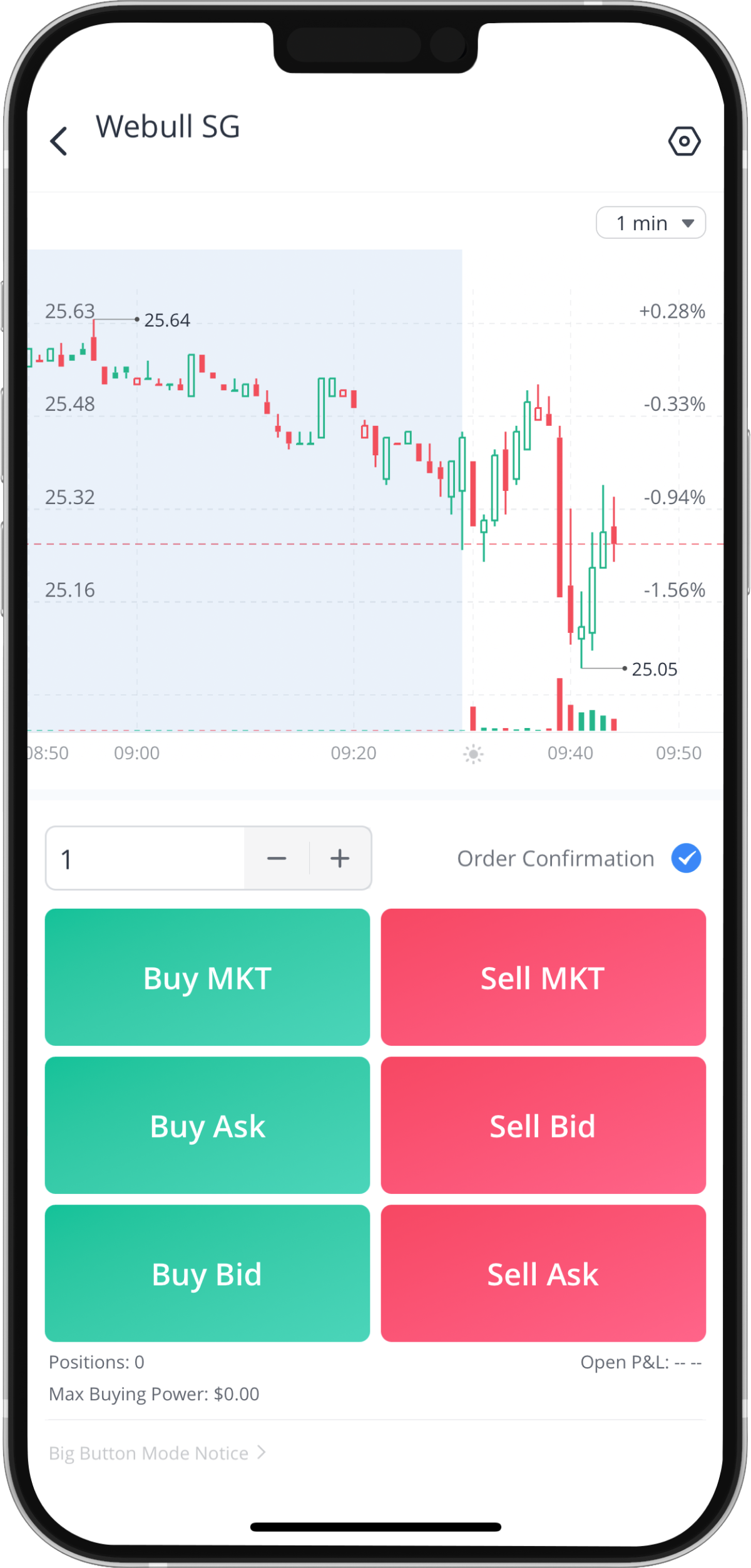
3. Quick Method (Big Button Mode)
Step 1: Tap “Trade”
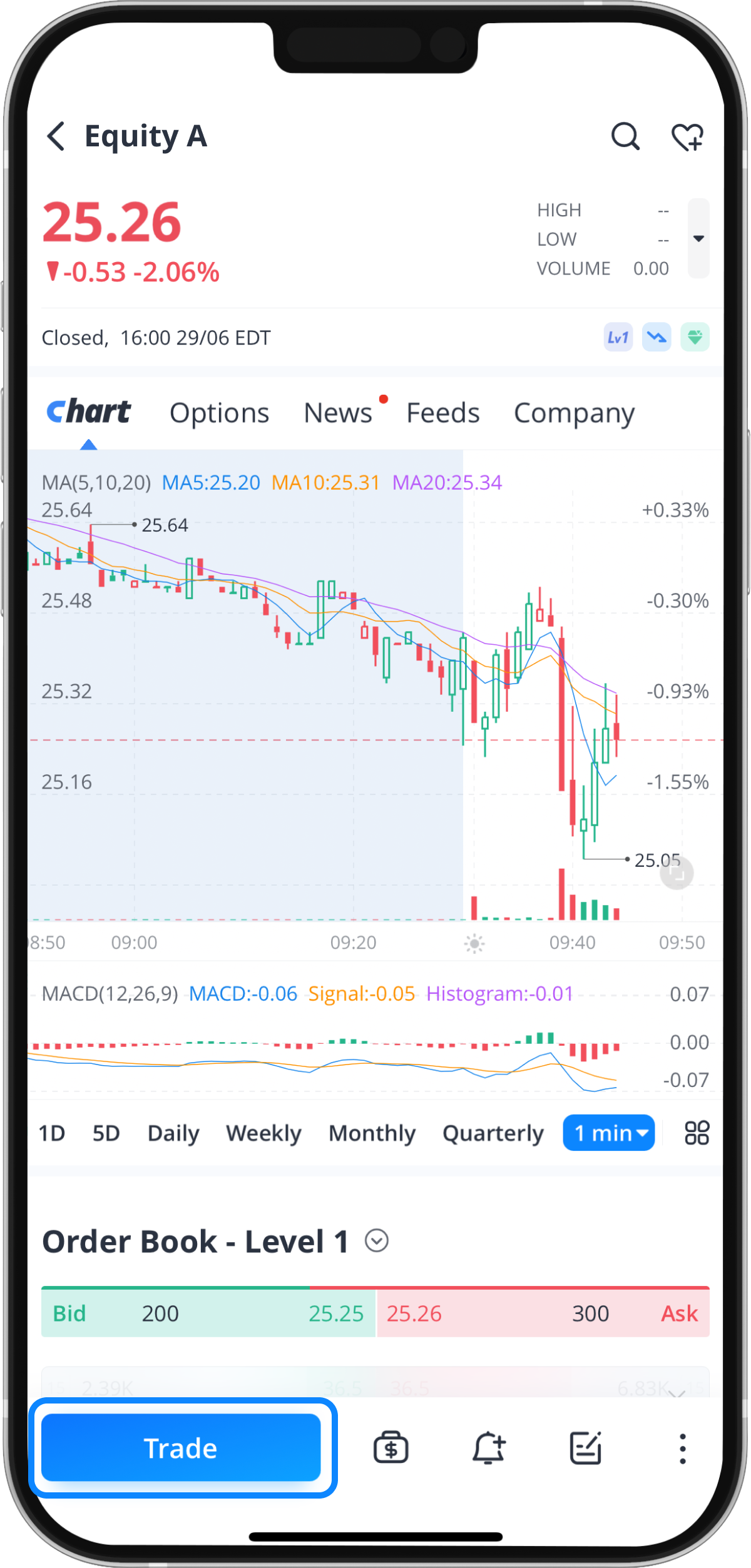
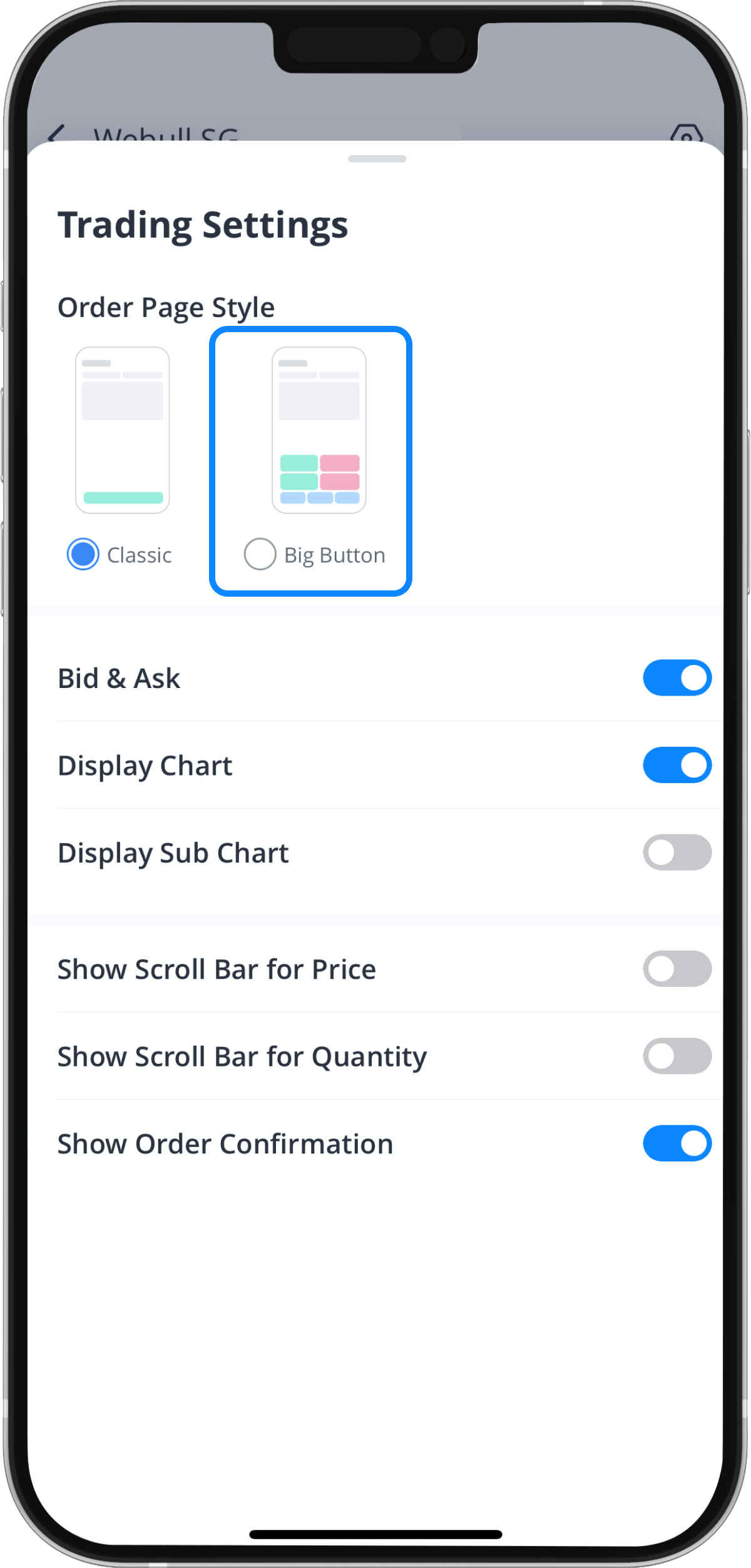
Step 2: Tap the “Settings” icon
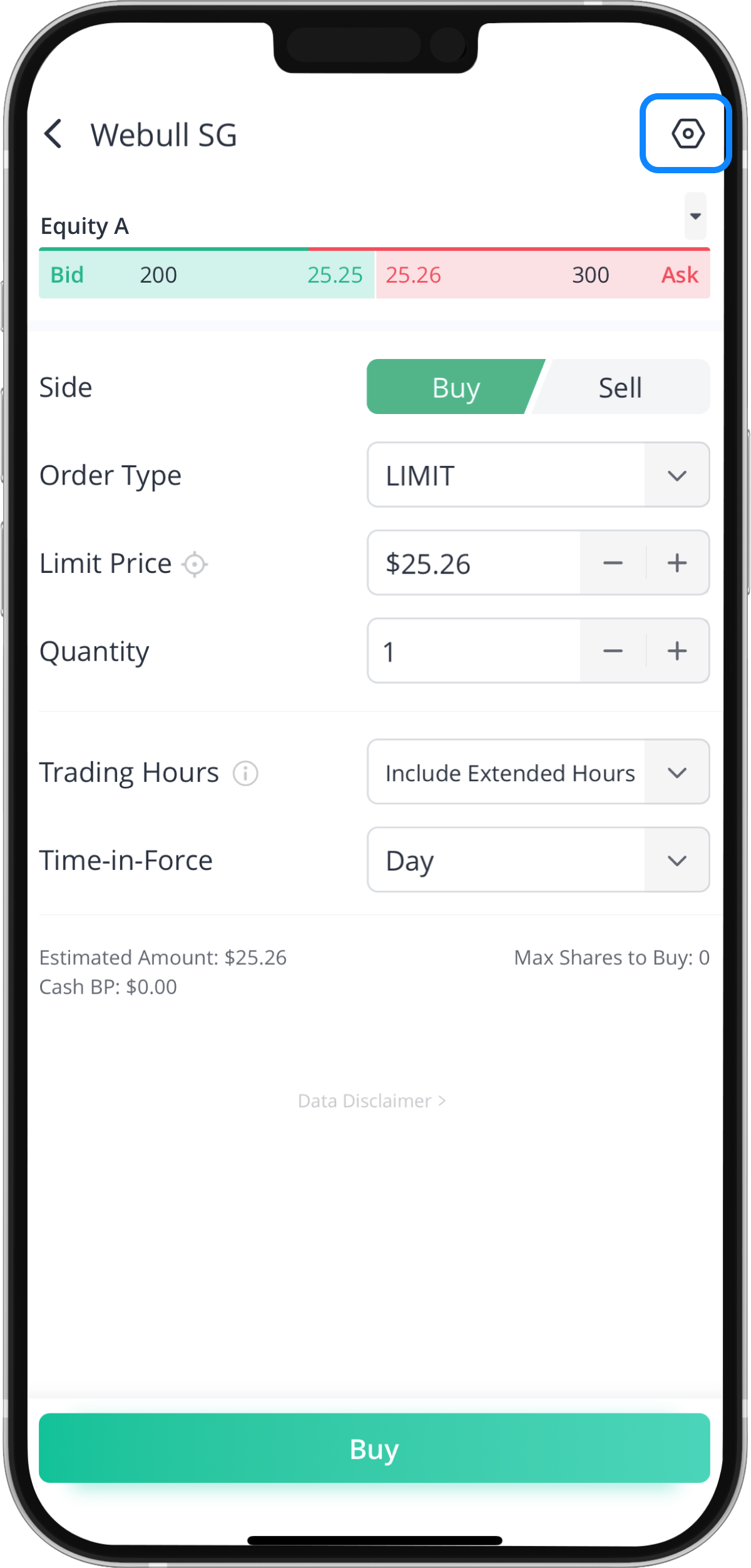
Step 3: Tap “Big Button”